How to check the screenshot you downloaded
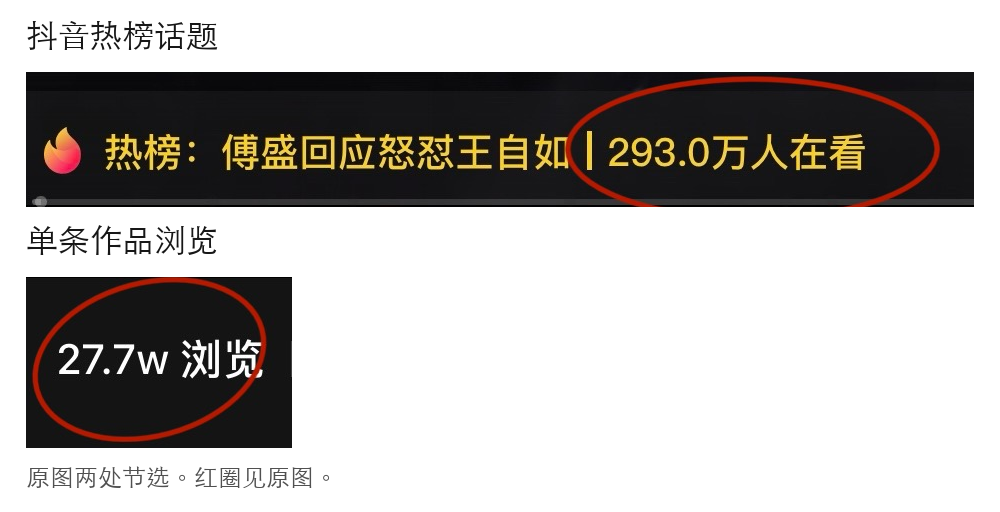
Two screenshots from the Wang Ziru and Fu Sheng discussion show why it pays to check both the number beside a label and the file behind a citation.
On this page
Choose the image that supports the claim
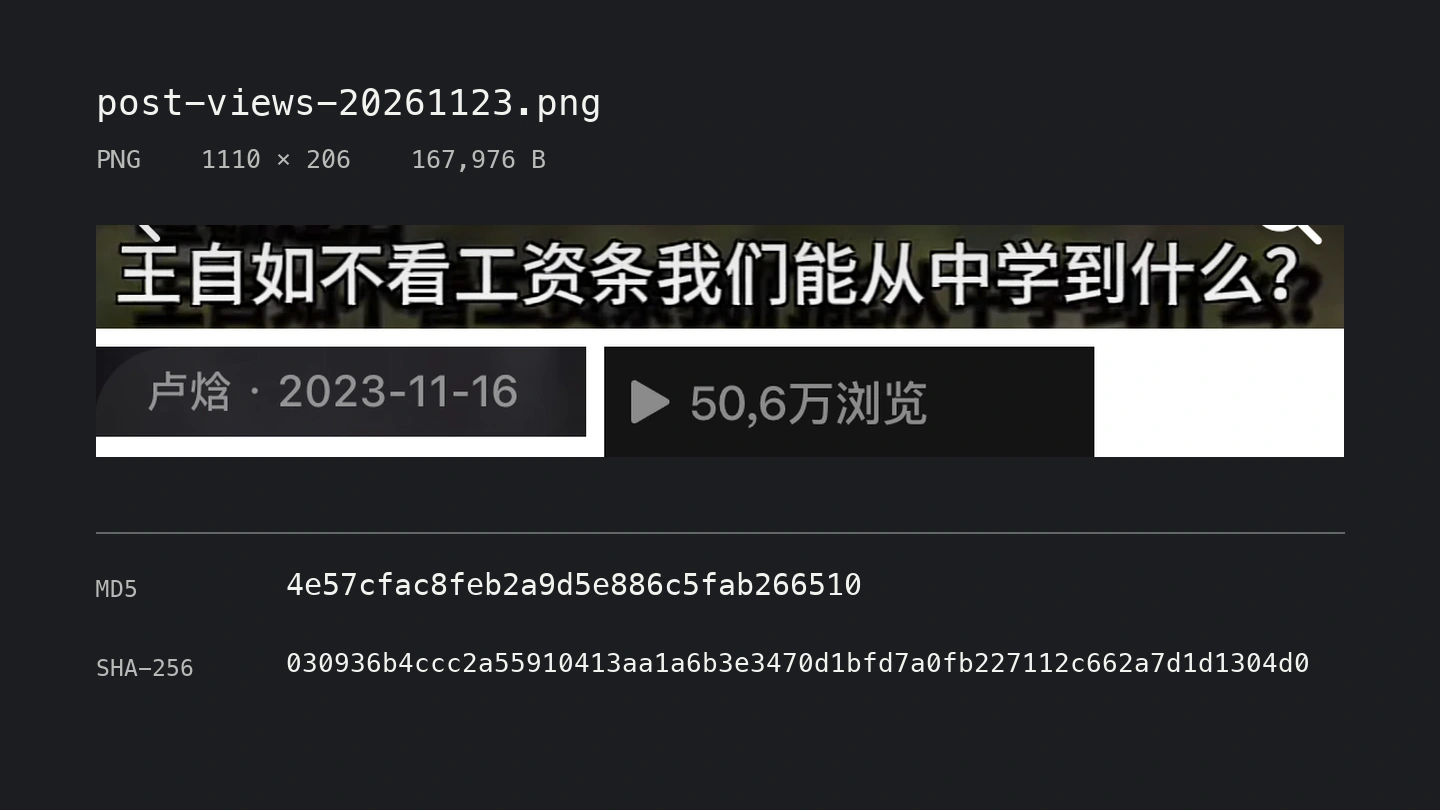
The early screenshot shows 2.930 million people viewing the trending topic and 277,000 views for one video by Alo Quant. A later screenshot records 506,000 cumulative views for that same video as of November 23, 2026. Before quoting a figure, check whether the label refers to the topic or the video and which screenshot you have open.
Verify a download on a Mac
Download the early image, topic-metrics.png, from the source page. Open the download manifest and find the matching filename. The entry lists a 1,000-by-512-pixel image with a file size of 165,232 bytes.
In Terminal, type shasum -a 256 followed by a space. Drag the downloaded PNG into the window and press Return. Compare all 64 hexadecimal characters at the start of the output with the sha256 value in the manifest. A match identifies the file as the download described by that entry.
A crop has a checksum of its own
The public PNGs show the parts of the screenshots relevant to the figures. Cropping and exporting change the bytes, so each public file and each retained original has its own checksum. The manifest includes MD5 for comparison with older records. Use SHA-256 to verify a download.
Matching files settle one question about a citation. To find out who published the work, when it appeared and what a number counts, read the source page and the labels in the image. A reader checking your citation needs both kinds of information.